Showing posts with label visual literacy. Show all posts

Sunday, November 8, 2015

Analyze Political Cartoons with Google Drawing

Google Drive has a variety of tools. Personally, I tend to use and have my students use Docs, Slides, and Forms. One that I have not used is Google Drawing. I just saw the power of Google Drawing unleashed yesterday at San Diego CUE by Derek J Marshall and Raymond Lopez.

It was genius how they have their students use it to analyze cartoons. They have their students upload a political cartoon into the drawing as an image. Next, have the students draw the cartoon into quadrants. Then, break down the cartoon by quadrant using the drawing tools and comment/text boxes.

This would also be a great collaboration activity to have pair or a table group of four work on together.

Here are a couple of pics of the the samples that they shared with us in their session.


Below are the steps to using Google Drawing. You can also click HERE for a link to the steps to share with your students and peers.


 Get drawing!

Saturday, May 2, 2015

Proper Pic Attribution with Photos for Class


Last weekend I attended Edsurge in Los Angeles, where teachers can explore emerging educational technologies. While waiting for the event to start, I had a chance to catch up and chat with Jen Roberts. Roberts is a rockstar middle school English teacher in San Diego. In our discussion, I brought up researching and getting students to properly attribute sources when she shared Photos for Class. This site is FABULOUS.

Photos for Class is a free database of Creative Commons G rated images that you can download WITH proper attribution included at the bottom of the image. Let me say this is golden. I have stressed with my students the needs to give proper attribution in their work including images. Too often teachers have students just grab an image off of Google. This is wrong. We must teach our students to search for Creative Commons images to utilize and give proper attribution. See last month's Fair Use blog post for more information on the topic.

Photos for class is easy to use. Just type in the topic in the search window. My students and I found that you may need to include the general topic and a specific aspect to narrow your search to be more productive. For example, when a student was looking for images related to the fall of China to communism we entered "Communism China." Once you find an image you like, select download. You will now have a Creative Commons photo with proper attribution to use in your task. This serves as a great way to teach digital citizenship and for students to see the proper way to attribute photos that are not there own.

Saturday, December 13, 2014

Showcase info with Piktochart


In this digital age, quick access to information and visual literacy is shaping how data is communicated. Did you know that the White House has a page dedicated to infographics and they include emoticons? Infographics are not to be discounted. They are becoming more a part of communication and require synthesizing and summary of information. Another consideration of infographics is that they can provide access to students with limited reading and language abilities.


Piktochart is an easy to use infographic maker. Teachers and students can sign up for a free account and begin creation. It is important to first conduct research and identify the key points and data to convey. Having students collaborate using a Google Doc for their research first is beneficial. Once this is known, it is easier to select a template that will work best. See Mei Chow has created a helpful layout sheet for planning and selecting the best template. You and your students can adjust color and fonts, import images from their site, or even import your own pictures or student created images from Google Drawing. Once you have created your infographic, you can share it via email, use the link to collect student work using a Google Form, or embed it on a web site. 

Monday, October 20, 2014

Web based video options for iOs and computer/Chomebooks with Animoto and GoAnimate


Students are more visual these days and all about the videos. Why not challenge them to use this interest for educational purposes. Two easy and multi-platform options are Animoto and GoAnimate. As mentioned in the previous blog post, videos are a great way to set the hook and for students to demonstrate their understanding of a concept. While the free trials/versions are limited in length, concepts can be broken down into their parts for a class to examine a topic more in depth at the teacher’s discretion.

Animoto allows you to take images to create a video. This is great to do with primary source images or student drawings. They have a selection of music options to serve as the background music. To tell the story you can add text over the images. Another option is to have students add text to the images beforehand or create a PPT and save it as a JPEG to use in Animoto. You can create your production on a computer, tablet, or even using your smart phone. Animoto is free for a 30 second shareable video. To make longer downloadable productions, a Teacher Plus account costs $30 a year.

Here is a brief video I made for a Google Docs training shred session.


Google Tools Slam 2013

Another option for video making is GoAnimate. As the name suggests, it is an animated short. It took me a bit to get going on this, however my students were quick learners and ran with it. There are a variety of settings, characters, animations, and voices that one can choose from. You can also use your own voice. Again, storyboarding prior to recording facilitates the selection and production process. Animoto offers a free 14 day trial and is a paid product after that. They also have teacher and district licenses with more options available. Again, I have found the investment worth it.


Here is one my students made for their Civil Rights case presentation.

Saturday, October 11, 2014

iMovie & Trailers to Hook & Demonstrate Mastery


Hook your students with your next topic using iMovies and trailers. They are easy to create and you can set a mood of intrigue to bring your students along into historical inquiry. Not only can one introduce a topic of study, but why not yourself?


 If you have an iOS device you can easily create an iMovie or trailer. Trailers are great for a minute intro and come with preset themes and templates. Even better, Learning in Hand has storyboard planning sheets that make the production easier…especially when having students create a short video demonstrating their mastery of a topic.


If you or your students have access to iOS devices, select a topic, storyboard the transcript, THEN find images to correlate/support the text, have the script typed out and images in a folder labeled, and then assemble your production. You and your students can share your videos by emailing them if the file is not to large. An easier option is to upload your movie or trailer from your device to YouTube (if you have a Gmail account, you have a YouTube channel) and share via link or embed it on your teacher site. Students can also share their YouTube video link with you by collecting them in a Google Form for easier class management.


Saturday, June 28, 2014

100 Years Later...The Legacies of WWI


History is more than the details of the event. We want our students to also understand significance and legacy of history while engaging in historical inquiry. The Wall Street Journal (WSJ) has created an engaging and very user friendly interactive called 100 Years Legacies: The Lasting Impact of WWI. One can navigate the legacies by their Politics, Culture, Countries, Armaments, Economy, Medicine, and Tactics categories. 

Each legacy has an image and an informative entry posting- some also have videos. You may notice that the legacy box has a box on the lower right with some red in it. This is the visual for how viewers have voted for that item and it’s legacy. If you or your students find something missing, you can let the WSJ know. Another feature they have is a quiz, where you can test your WWI knowledge,


Once you find a legacy of interest, you may share it from the WSJ on Twitter, Facebook, or Google+. The share options also include a link, which is useful if you or your students want to connect it to a blog post or other type of mastery project. This site also serves as a great reference point for teaching and demonstrating legacy with students. With this year’s National History Day theme being Leadership and Legacy in History, this may be particularly helpful.

Saturday, May 17, 2014

Explore the World with Google Cultural Institute


If your school is like mine, you do not have funds for field trips to museums or historic sites. Thanks to the Google Cultural Institute, you can bring museums and historical sites into your classroom virtually. The ability to bring in art pieces and visit historical sites can lead to some GREAT discussions. This is an especially great opportunity for those shy and artistic students to be engaged, demonstrate their understanding of the content and feel empowered. You may want to plan additional time for using these pieces, at least I have always found this to be true… the students are SOOO engaged! Upon arriving at the site, there are three projects; Art Project, Historic Moments, and World Wonders. There are many possible uses of the Google Cultural Institute by teachers and students.


Once you are in the Art Project, you may explore by collections, artists, and artworks. Once you find an art piece of interest you can zoom in to amazing clarity and view the colors, textures, and brush strokes- this is great for discussing art movements. In addition to the zoom factor, you may select on details located to the left of the image to learn more about the art piece.


In the Historic Moments collection one will encounter monuments, collections, and videos. Select a moment and explore the slideshow. This is a great resource for inquiry and examination of primary sources. The format is very student friendly and similar to a museum exhibit. Select Discover on the bottom left to find other similar exhibits. Students and teachers can also save exhibits to return to later on.


Then there is World Wonders where you will find locations, places, art, and street views in some instances. This is a great tool to explore historical places and examine the architecture and landscape. Simply select locations to bring up a map and select a blue dot of the location you wish to explore. Once you find a location, simply select it to access available street views, items, and videos.

If this was not enough, you or your students can also curate your own gallery (think student creating a multimedia presentation for CCSS). The possibilities of what one can do are only limited by one’s imagination. Teachers can take students on virtual field trips or curate resources for class discussions on cultural or historic sites. Collections or your own curated gallery can also be shared with students in webquests, as part of a PBL unit, or via Google+, Twitter, or email with the share icon. This also has potential for students researching topics for class assignments, projects, or history day. Additionally, the curation tool lends Google Cultural Institute to be utilized by students to curate their own multimedia presentations for classroom presentations, digital portfolios, or blog entries.Students may carry out their curiosity outside the classroom in exploring the world, even creating their own bucket list of places to explore.

Saturday, April 5, 2014

Concept Mapping with InstaGrok


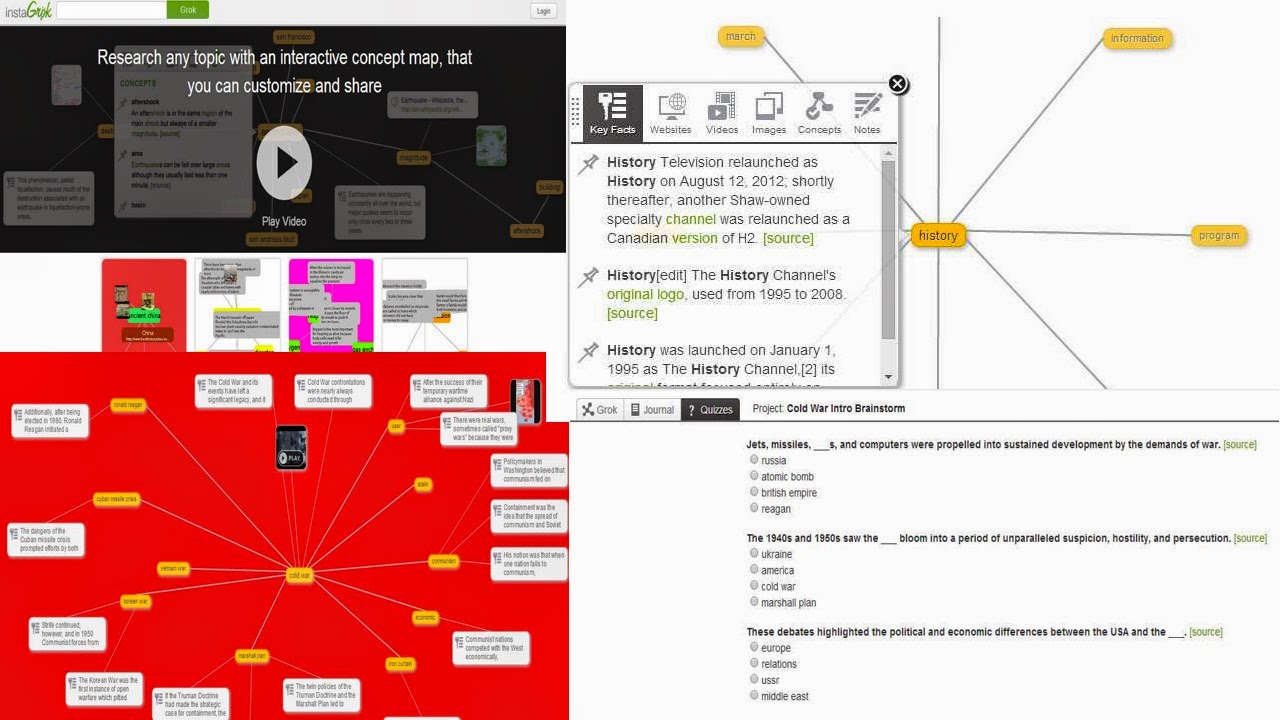
These days, our students are coming to us as overwhelmingly visual learners. With all the time they spend on their devices it is no wonder. Additionally, there is much research behind the benefit of mind mapping to assist student learning. InstaGrok is a great tool for both teachers and students. As a teacher, it is great to introduce students to a topic and show relationships. As you map out your unit topic, you can select from InstaGrok's key facts with source attribution or hyperlink to websites with additional information. The latter is great for teachers to share their InstaGrok and provide links for further inquiry with their students. One may also add videos, pictures, and additional concepts from InstaGrok or add in your own note. The addition of your own notes is great for teachers to add additional video and images (InstaGrok has a limited selection at this point in time) as well as additional facts and primary sources!

My students were amazed and engaged when I first introduced them to InstaGrok. Beyond this, we found it to be a great tool for them to use to engage in historical inquiry. Students can enter a topic and use the web to further their inquiry and research into a topic. Some of the English teachers have also began to use it in their common Common Core lessons at my site. There are also other cross-curricular uses. When it came time for my students to begin their Cold War project, which includes a multimedia presentation, a few asked to use InstaGrok as their presentation tool.


There are many ways to individualize your InstaGrok with the background and concept colors, Again, the notes option allows one to type in their information and/or hyperlink to an outside item of interest. Once complete, you may share your InstaGrok with students or have them share their InstaGrok with you via FaceBook, Twitter, Google+, Pinterest, embedding it onto a website/electronic portfilio, or share it via a link in an email. They also provide the ability to view the InstaGrok in a journal mode and ability to quiz the students based on the key facts included to check for understanding.

Saturday, September 14, 2013

Give students a voice in visual literacy with Voice Thread


       Examining primary sources and evaluating data is an important skill in history. This skill is also explicitly addressed in the Common Core State Standards across the grade levels. Teachers are called upon to engage students in historical inquiry. Often times students are weary of speaking in class. Additionally, more schools are gaining access to technology and looking for ways to leverage their devices in meaningful ways. Voice Thread is a collaborative conversation tool to foster inquiry with text and visuals.

       Voice Thread is easy to use and provides versatility. They have included a vast number of images one may select from their media options. Teachers can also upload images, insert a video, or convert a PPT for students to engage with. A teacher may insert part of a primary source text, image, or chart into a PPT and type a question(s) for student analysis/reflection. If using a PPT, the teacher/user must first convert the file into a JPEG. Students have found the tool engaging. There are a variety of response options available. A student may type a response, circle part of the image of text with the writing tool, use the writing tool to focus on part of the image and type a response, text a response, or record a video response. Students must create an account for free using an email address before they can post. Once a teacher has created a Voice Thread, they may share with with the students via email, sharing a link in class, or they may embed the voice thread on a website. It is also available as an app.

       The following instructions walk you through creating a Voice Thread, including how to convert a PPT to use it in the program.


Wednesday, May 29, 2013

Photo Apps for the 2.0 Classroom

While most people think of text when they think of literacy, visual literacy is just as important. This clearly comes across when one looks into CCSS. At a recent Discovery DENin in Irvine, teachers from across the country spent time examining the CCSS and tech integration. One of the sessions was APP Hour. I had never participated in one before. Teachers went up and shared an app that they used in the classroom. There were teachers, tech coordinators, and librarians from both public and private schools servicing Special Education, general, and GATE students. I was blown away by the photo apps being utilized by the lower grade teachers and how they were using them to demonstrate visual literacy, by themselves as well as by the students.

Photos give students a creative way to demonstrate their knowledge of a concept. In fact, it can be more challenging at times to select the correct images to tell the story. Teachers would sometimes use the images as collages for intro of a unit, do now to connect to the night prior's reading or previous day's material, or have the students create one for a given topic. Photos are a powerful way to tell a story, especially given the visual nature of today's students. Below are a few of the photo apps shared.


Pic Collage
PicCollage lets you instantly arrange your photos into frames - or get creative with freeform collages, cutouts, filters, borders, stickers, and text. Your friends will be amazed with what you can create. It's like photoshop with your fingers!


Instapicframe
Instapic frame helps you combine multiple photos into amazing looking shells/frames/collage and share them with world via Instagram, Facebook, Email, Twitter. With 55 fully adjustable frames, rounded corners, photo effects, shadows, plenty of patterns and an easy color picker you will always have a unique and distinctive look.


Strip Designer
Add photos from your photo album or draw your own sketches. Apply simple image filters to increase the impact of photos, and add speech balloons Add advanced textual elements and stickers to get that genuine comic book feel. When you are done, save the resulting image to the iPhone's photo album, email it to friends and family or share it with Flickr, Facebook, or twitter.


Type Drawing
TypeDrawing is a really easy app to use, but it's perfect for creating TYPOGRAPHY ART and UNIQUE WATERMARK over your photos. If you love typography, this poetic visual art app is absolutely yours. Start by typing a sentence you want to say, and then just draw with your finger. This simple action leads you to make stunning typography arts and wallpapers


Word Salad
Make great wordsalads out of documents that matter (or not) to you! With WordSalad you can make beautiful word clouds, super customized with different fonts, colors and words layouts.