Showing posts with label sschat. Show all posts

Saturday, December 13, 2014

Showcase info with Piktochart


In this digital age, quick access to information and visual literacy is shaping how data is communicated. Did you know that the White House has a page dedicated to infographics and they include emoticons? Infographics are not to be discounted. They are becoming more a part of communication and require synthesizing and summary of information. Another consideration of infographics is that they can provide access to students with limited reading and language abilities.


Piktochart is an easy to use infographic maker. Teachers and students can sign up for a free account and begin creation. It is important to first conduct research and identify the key points and data to convey. Having students collaborate using a Google Doc for their research first is beneficial. Once this is known, it is easier to select a template that will work best. See Mei Chow has created a helpful layout sheet for planning and selecting the best template. You and your students can adjust color and fonts, import images from their site, or even import your own pictures or student created images from Google Drawing. Once you have created your infographic, you can share it via email, use the link to collect student work using a Google Form, or embed it on a web site. 

Sunday, December 7, 2014

Ashbrook CORE Docs and More


The Ashbrook Center is an independent center at the University of Ashland. They have a variety of constitutional and other educational resources for teachers and students. Their Teaching American History website has a variety of resources that teachers can use to create inquiry lessons and digital DBQs. Students will also find their resources helpful in inquiry assignments and AP exams. Three projects of note are Ashbrook’s 50 Core Documents, online exhibits, and lesson plans.


There are a variety of ways to utilize Ashbrook’s resources, both in a traditional and technological manner. When using the 50 CoreDocuments, teachers can print them off to conduct close reading or document based activities. In classes where the students have access to technology, they can copy the text into a Google Doc to annotate and collaborate in virtual discussions with their peers, the teacher may chunk the document and import it into Voice Thread to create a collaborative/interactive DBQ, the documents may be referenced as part of an inquiry lesson utilizing a web quest, and more. 


The online exhibits are in and of themselves a webquest into specific topics. Teachers may want to create a Google Doc with questions for the students to respond to as they engage with the exhibits. The online exhibits could also be utilized as a jumping point for students to create their own inquiry question to drive further investigation. Another possibility would be to have students synthesize their inquiry with the exhibits by identifying key points and citing evidence with the creation of a multimedia presentation such as Prezi, a movie presentation utilizing Animoto or GoAnimate, or create an infographic using Piktochart. In a traditional classroom, the teacher can project the online exhibit with a project and guide the students through exploration. The lesson plans provide a variety of options and resources for teacher to use as they are, modify, or be the point of inspiration.

Sunday, April 27, 2014

Extra, Extra Read All About It...NEWS!

Literacy in history/social studies is expressed through critical thinking, communication of ideas,civic engagement, and global understanding.  To this end, the state of California is moving forward with its Civic Education Initiative. One of the 6 Proven Practices of Civic Education is discussion of current events and controversial issues. Reading the news helps our students to meet these goals and those of the Reading Informational Text strand of the Common Core. We are living in an age where media is at our fingertips...whether at the touch of a keystroke on a computer, tablet or cell phone these days. Four engaging opportunities for our students to access current events are Newsela, Newseum, Newsmap, and Vox. All of these news outlets provide news in an engaging manner to make the content focused and accessible to today's students on their website and through Twitter.

       Newsela 
       Newsela opens up many opportunities for the news and our students with their FREE high interest news articles. Have you had to deal with students in your class at different reading levels? They take news articles from major publications and adapt them to five different reading lexiles. News articles are categorized into seven categories: war and peace, science, kids, money, law, health, and arts. Additionally, some of the articles come with quizzes to check the student's reading comprehension. These articles lend themselves to close reading activities to facilitate reading comprehension.


       Newseum


       Newseum is more than an amazing museum to visit in DC. They also have a host of educational resources in their Digital Classroom, program archives, and their Front Pages is invaluable for current events. Having taught International Relations and World History, the Newseum's Front Pages is a site to keep bookmarked and get your students familiar with. Using their Sort Papers by Region link, you can customize what part of the world to have your students explore. What I loved is for them to see the front pages of different countries. If there was a major international news story played out here in the US, was it positioned so in other countries? This led to some great conversations. In every region they have, we were always able to find at least one newspaper in English. Have your students click on the newspaper and then the blue website hyperlink on the top right of the newspaper front page to see more in that publication--- this can be so eye opening for students. This is also a great resource for students whom English is not their first language and foreign exchange students. Another feature is to search the US headlines to show students how news can be regionalized and illustrate bias.

       Newsmap 

       Newsmap is a great aggregate tool to visualize trending stories. Newsmap categorizes the news into seven color coded categories: world, national, business, technology, sports, entertainment, and health. You can select which categories you wish to display on the bottom right to customize your screen. The larger the box, the more the topic is trending. Again, this is a great visual tool for students. Hover over of click on the box to read the article. You can also select region and language options on the top toolbar. This is a great website to use with students when you are wanting them to research or select news stories related to a particular category.


       Vox 

       
       Vox is a general news site with a mission to EXPLAIN the news. This is the project of journalist and blogger Ezra Kline launched this month. So far it looks great. The home page lists current news articles, Understand the News with related articles and fact cards to help one better understand the topic, videos, and conversations. The articles sometimes contain highlights of key items and include hyperlinks to provide contextual information for portions of the articles. What myself and some of the students have found useful are the fact cards. Theses are great for helping students understand the context and key points, especially in world events. The cards are also easy to share as a deck on Twitter or print out for a classroom jigsaw activity. Vox is looking like a resource to keep our eyes on and I'm looking forward to using this with my students. Again, another great source for close reading activities with students.


Saturday, October 12, 2013

Collaborating with Google Docs


       Google Docs, housed on Google Drive, have a limitless possibility in the ways teachers can utilize them to meet the 4C's of the Common Core (creativity, collaboration, critical thinking, and communication). Additionally, using Google Docs eliminates the need for costly Microsoft software and formatting issues. How many times has a student told you their computer crashed, they lost their flash drive, student x is absent with the PPT/doc, they forgot to save the file, or the computer will not open the file? Google Drive eliminates all of this! It automatically saves the document, students can share the document and work on it at the SAME time ( I have had a whole class of 37 students working on 1 CST PPT for review at the SAME time), it is stored in the cloud, and eliminates the cannot open file issue with different formats. As long as you are connected to the internet, you can access the file. It is also available as an app on android and ios devices.

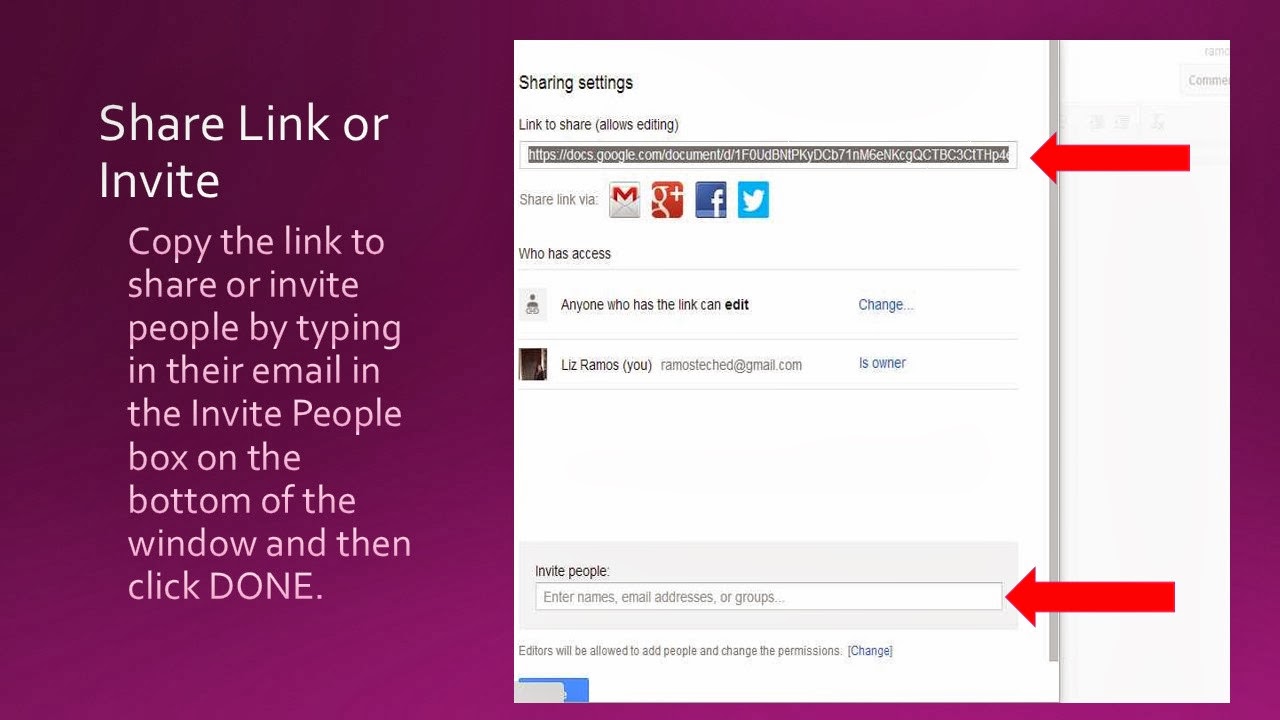
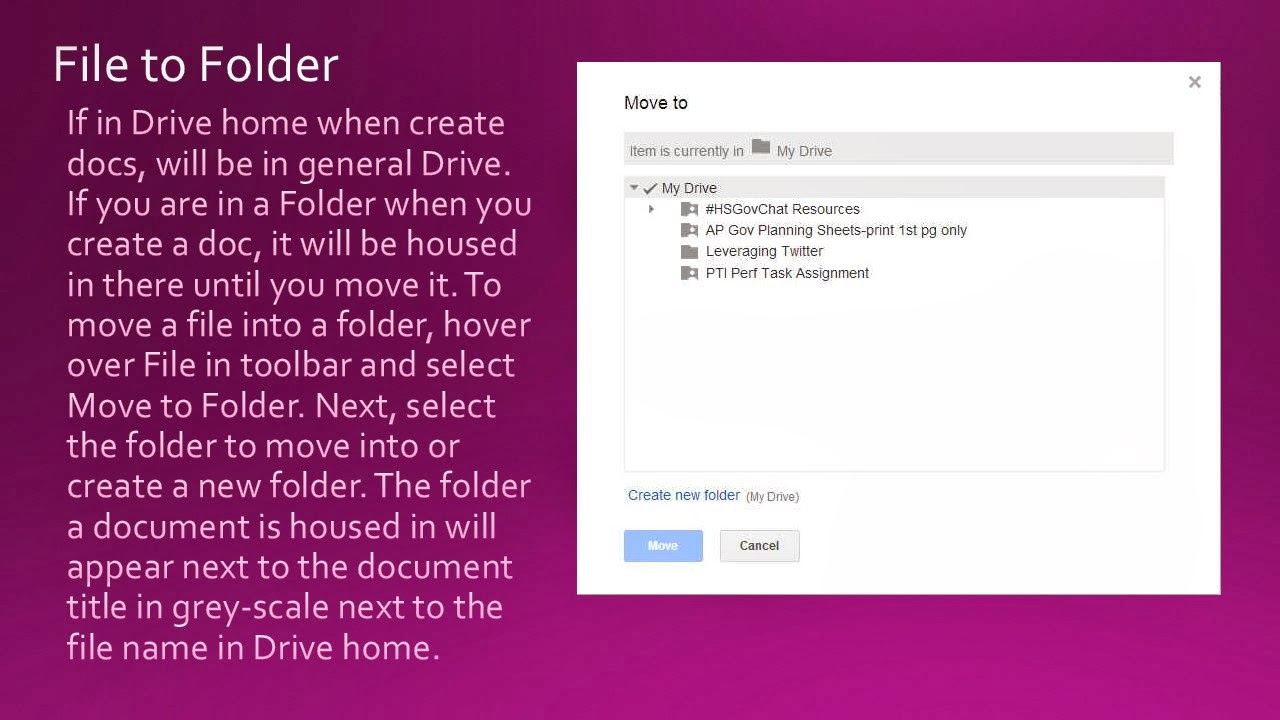
       To begin, have students create a Google Drive account. When in Drive, you can create a document (similar to a doc), presentation (similar to a PPT), spreadsheet (similar to excel), form, drawing, or folders. Once students get used to the sharing and privacy settings, Google Documents are transformational and students generally will gravitate to them. They also allow you to see the revision history so you can see exactly when and who was active on the document. Students can create a Doc and you can have them share it with you and/or another student enabled to comment. This can be used as an exercise to write , collaborate for revision, and then have the student revise the Doc for final submission. If you are completing a group project in class or for National History Day, multiple students may edit a document. Teachers may also have students create a folder with their writings/inquiry throughout the year to serve as an electronic portfolio.

     Here are the steps to creating a Google Document and sharing it:


Saturday, September 14, 2013

Give students a voice in visual literacy with Voice Thread


       Examining primary sources and evaluating data is an important skill in history. This skill is also explicitly addressed in the Common Core State Standards across the grade levels. Teachers are called upon to engage students in historical inquiry. Often times students are weary of speaking in class. Additionally, more schools are gaining access to technology and looking for ways to leverage their devices in meaningful ways. Voice Thread is a collaborative conversation tool to foster inquiry with text and visuals.

       Voice Thread is easy to use and provides versatility. They have included a vast number of images one may select from their media options. Teachers can also upload images, insert a video, or convert a PPT for students to engage with. A teacher may insert part of a primary source text, image, or chart into a PPT and type a question(s) for student analysis/reflection. If using a PPT, the teacher/user must first convert the file into a JPEG. Students have found the tool engaging. There are a variety of response options available. A student may type a response, circle part of the image of text with the writing tool, use the writing tool to focus on part of the image and type a response, text a response, or record a video response. Students must create an account for free using an email address before they can post. Once a teacher has created a Voice Thread, they may share with with the students via email, sharing a link in class, or they may embed the voice thread on a website. It is also available as an app.

       The following instructions walk you through creating a Voice Thread, including how to convert a PPT to use it in the program.


Thursday, July 19, 2012

Stepping into blogging & flipping

So, I was at the California 3Rs Leadership Institute and Debbie Granger from the Orange County Department of Education and I were talking. I mentioned various programs I had participated in and a variety of tech tools I use and am planning to use this coming school year. Also, I mentioned my plans to flip my classroom and showed her my website. Debbie asked if I was blogging about this- I said no- and she encouraged me to blog.... and here I am.

Let me back up a bit. I have participated in three San Bernardino County TAH programs over the past six years. It has been here that I have been introduced to tech tools for the classroom and transformed the way my class runs. My class is not the quiet direct instruction- listen to me lecture and take notes... no asking questions class. I have always tried to find ways to engage the students and challenge them- they would say too much at times. In my quest to keep my classroom engaging I have participated in a variety of programs in CA, nationally, and internationally.

One of the schools I was at in my district told me our students don't read much, nor do homework when I met with the principal and dept chair before I was moved there when I told them how I run my class. When I arrived at the school, students thought I was crazy when I told them they had to read, take quizzes, and complete projects. While they complained and disliked my approach at first, they came to see the value and realized they were learning and scoring higher that they had in the past. I DO NOT believe you lower the bar in lower scoring schools and/or high ELL student populations- you just have to become more creative. I went from getting the evil eye to being called "madre dos." Many even wanted to request me for their history teacher the next year. They thought I was crazy recording my lectures and bringing more tech into the classroom, but they went along and did great.

Next, I returned to my original and current teaching site. It is here that I have really embraced technology and  integrated more student centered activities. Over the past years, I have utilized PhotoStory to continue lessons when I'm at workshops and for student projects, web quests, streaming videos, Voicethread, Prezi, Glogster, Poll Everywhere, numerous interactive websites, and had my students create a historical music video to name a few items.

This year I really want to flip my class and utilize most of my classroom time for student centered activities- internet based and on good old fashioned paper. Technology will be a huge part of my class in the flip, meeting  the CCSS, and preparing the students to ready for the 21st century workplace. My students will be working in groups to create an electronic portfolio of the year. For each unit I am going to have them create an annotated timeline using Capzles or Dipity, identify key terms using Study Blue (electronic flashcards), link to primary sources and annotate them, and create a 4 Worlds chart for each unit. Students will also be able to create a video on the unit using Animoto or Xtranormal for bonus points. Kind of ambitious, but I know my students can do it!... How much gray hair will this add? I look forward to how things go- although I know I will hit a few speed bumps and an open trench or two... it took me a few years to get my student digital documentary assignment to where I'm pretty happy with it. Feel free to follow along this journey with me. I will be using edmodo (Facebook for education) for classroom postings, discussions, and turning in assignments using Google Docs- have all your students sign up for one as early as you can in the school year. Weebly will be the host for class notes, PPTs/Prezis, handouts, resources, review materials, and house the student websites.(APUSH site) More sites and ideas to come.....