Saturday, October 12, 2013

Collaborating with Google Docs


       Google Docs, housed on Google Drive, have a limitless possibility in the ways teachers can utilize them to meet the 4C's of the Common Core (creativity, collaboration, critical thinking, and communication). Additionally, using Google Docs eliminates the need for costly Microsoft software and formatting issues. How many times has a student told you their computer crashed, they lost their flash drive, student x is absent with the PPT/doc, they forgot to save the file, or the computer will not open the file? Google Drive eliminates all of this! It automatically saves the document, students can share the document and work on it at the SAME time ( I have had a whole class of 37 students working on 1 CST PPT for review at the SAME time), it is stored in the cloud, and eliminates the cannot open file issue with different formats. As long as you are connected to the internet, you can access the file. It is also available as an app on android and ios devices.

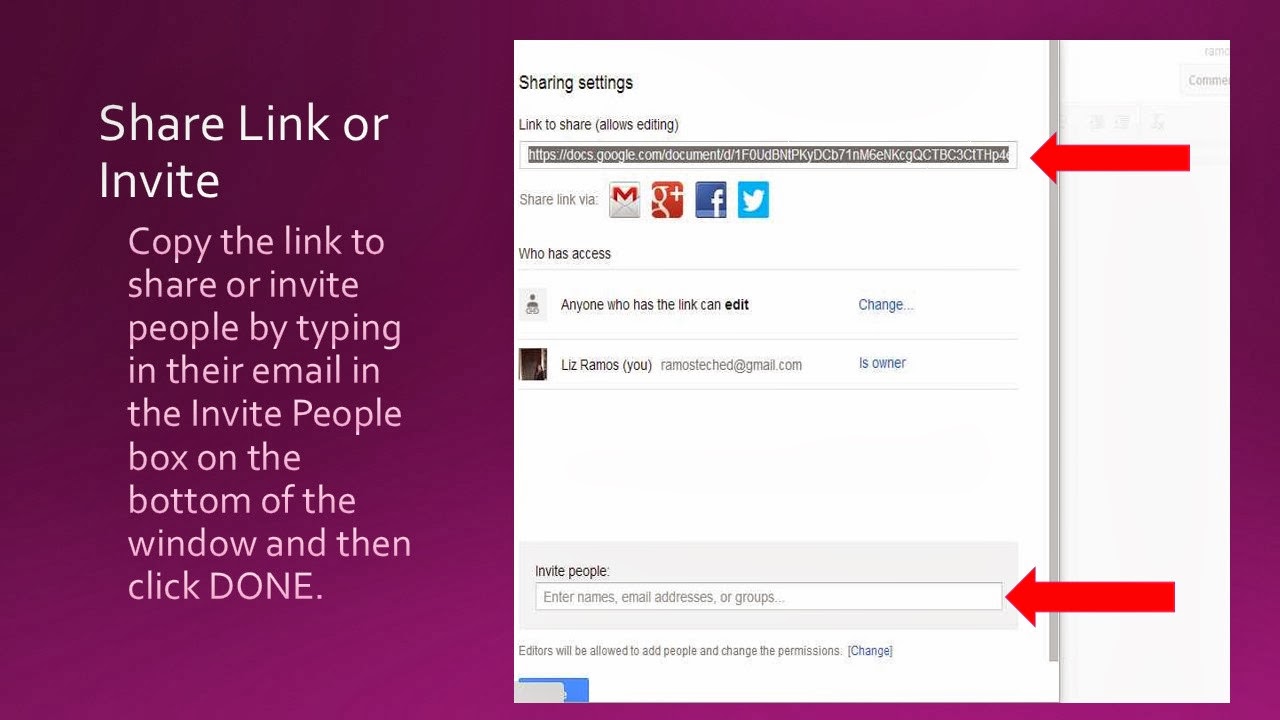
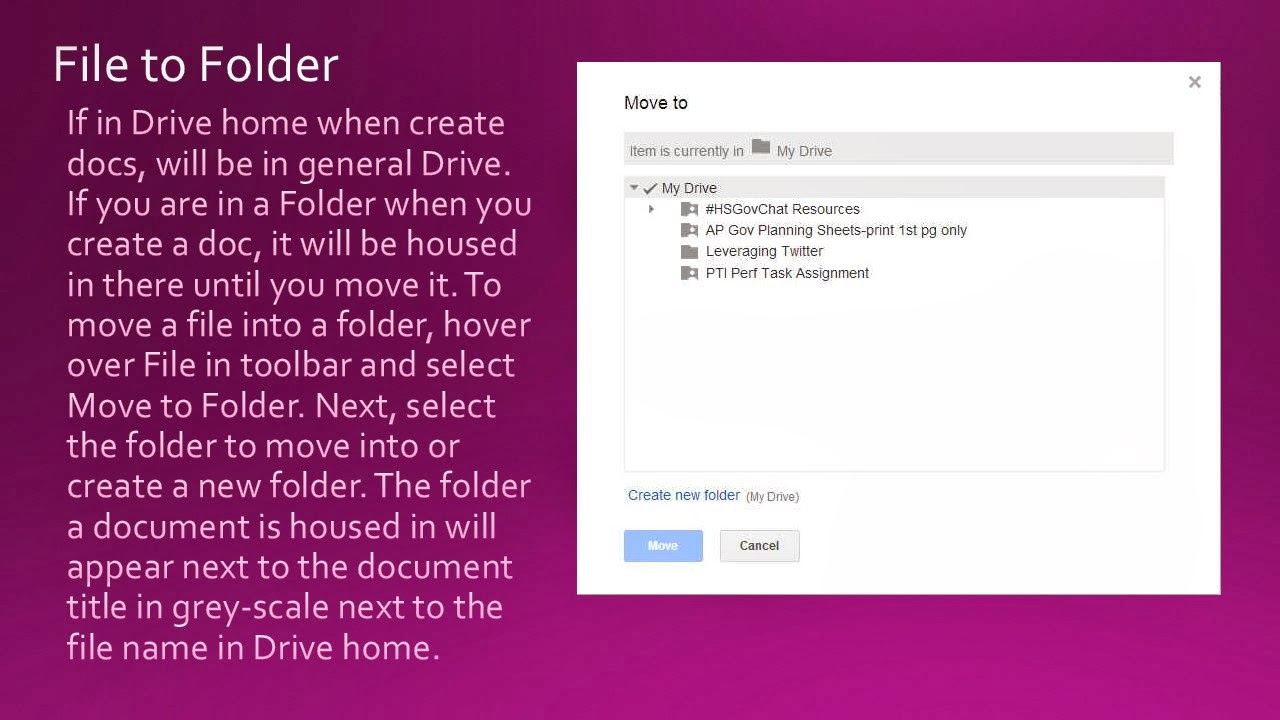
       To begin, have students create a Google Drive account. When in Drive, you can create a document (similar to a doc), presentation (similar to a PPT), spreadsheet (similar to excel), form, drawing, or folders. Once students get used to the sharing and privacy settings, Google Documents are transformational and students generally will gravitate to them. They also allow you to see the revision history so you can see exactly when and who was active on the document. Students can create a Doc and you can have them share it with you and/or another student enabled to comment. This can be used as an exercise to write , collaborate for revision, and then have the student revise the Doc for final submission. If you are completing a group project in class or for National History Day, multiple students may edit a document. Teachers may also have students create a folder with their writings/inquiry throughout the year to serve as an electronic portfolio.

     Here are the steps to creating a Google Document and sharing it:


Monday, September 23, 2013

Note-taking Tools

With teachers having multiple devices and students using tech tools in class and a different device at home, note taking platforms are in demand. Two options, which many teachers are using themselves and with students for portfolios, are Evernote and Notability.

Evernote works on a variety of platforms and syncs on multiple devices (android and ios). You can take notes on Evernote, insert images, and record audio with text notes. It is great for students who begin research in class at school and continue it later on. They can resume where they left off and retain links they saved earlier with Evernote's webclipper tool. Teachers and students can even save tweets too. Evernote provides a variety of tutorial videos to support its product.

Another product for note-taking is Notability. This is an ios app compatible with the ipod, iphone, and ipad. It is a $2.99 download from the Apple Store. While taking notes in Notability you can type, use touch screen with your finger or stylus, add images, capture a webpage, and record audio. Users may export their files in PDF or email and may back them up to Google Drive or Drop Box. Cnet has provided a guide for getting started with Notability.


Saturday, September 14, 2013

Give students a voice in visual literacy with Voice Thread


       Examining primary sources and evaluating data is an important skill in history. This skill is also explicitly addressed in the Common Core State Standards across the grade levels. Teachers are called upon to engage students in historical inquiry. Often times students are weary of speaking in class. Additionally, more schools are gaining access to technology and looking for ways to leverage their devices in meaningful ways. Voice Thread is a collaborative conversation tool to foster inquiry with text and visuals.

       Voice Thread is easy to use and provides versatility. They have included a vast number of images one may select from their media options. Teachers can also upload images, insert a video, or convert a PPT for students to engage with. A teacher may insert part of a primary source text, image, or chart into a PPT and type a question(s) for student analysis/reflection. If using a PPT, the teacher/user must first convert the file into a JPEG. Students have found the tool engaging. There are a variety of response options available. A student may type a response, circle part of the image of text with the writing tool, use the writing tool to focus on part of the image and type a response, text a response, or record a video response. Students must create an account for free using an email address before they can post. Once a teacher has created a Voice Thread, they may share with with the students via email, sharing a link in class, or they may embed the voice thread on a website. It is also available as an app.

       The following instructions walk you through creating a Voice Thread, including how to convert a PPT to use it in the program.


Tuesday, August 27, 2013

Get the best PD for FREE!


Many people think of Twitter as something the Hollywood types use. Twitter is actually a powerful tool for educators. Teachers across the US and other countries are leveraging Twitter to collaborate and provide the best PD for free! There are Twitter chats for every topic imaginable. Looking for some useful information, just follow a hash tag (#). Cybraryman.com is a website full of educational resources. Among this pot of gold are multiple pages dedicated to Twitter. Check out the Twitter page for beginners, learn educational hashtags, find a chat to participate in, and then participate in a chat.

You may be leary like me. However, Twitter has become such a powerful tool in my teaching arsenal. It is not just about having a PLC anymore. As educators, we are talking about the Common Core and 21st Century skills. These include collaboration and integration of technology. It is important that we model for our students and be life long learners. Today it is about developing you PLN- Professional Learning Network. Educators on Twitter are collaborators looking to learn, share, and build up each other. Initally, I was what is referred to as a "lurker." I followed people and would watch the stream on my computer for chats. Then I was brave one day and participated. Seriously, I look back and what was I thinking. Don't be afraid to just jump in. The people on Twitter are very supportive and embrace newbies. Even better, find someone on Twitter and meet up to watch how they participate in a chat. Don't worry if the chat goes too fast. You can always go back through the archives of the chat.

There are a few things you will want to know as you begin. Change the egghead profile picture and write a profile. Some people are leary to follow people without an image, it does not have to be you, or some biographical information on their profile. When you find people you like, check out who they follow as possible people to build your PLN. Fridays have become Follow Friday's (#FF). People will recommend people to follow using #FF, use these to build your PLN too. Branch out outside of your subject matter. I have learned immensely by following other teachers outside of Social Studies. When you tweet about a topic, include the hash tag for that topic. For example, include #sschat for Social Studies, #wrldchat for World History, #edtech for educational technology, #ccss for Common Core, and #HSGovChat for Government Tweets. Find a chat or two to get started. Some particular helpful ones for history are #HSGovChat Sundays at 6pm, #sschat Mondays at 4pm, and #wrldchat Tuesdays at 5pm. Other chats of interest may be #ccsschat Sundays at 6pm, #tlap Mondays at 5pm,  #flipclass Mondays at 5pm, and #caedchat Sundays at 8pm. Lastly, utilizing a Twitter client such as Tweet Deck will make following hash tags and chats MUCH easier.

That's a brief overview. Still not convinced? Google Twitter for professional development. Over 200 MILLION results come up. Read an article or blog post and come on board!

Friday, June 14, 2013

CCSS Writing as Student Bloggers

Many students are reluctant writers. As educators, we sometimes need to hook or "gamify" tasks to engage our students. Blogging has done just that for many educators. Students start to become more engaged when they know their writing is public, even more so when collaborating with students outside of their own school site. Blogging provides a powerful medium for students to reflect on their learning, re-purpose gained knowledge to demonstrate mastery, and engage in historical conversation with their peers. All of this is supported in the CCSS Writing standards which call upon students to produce and distribute, utilize technology, write routinely, and write to inform and argue.

Last weekend I met with some educators for a Coffee Cue in Pasadena. Among the topics we discussed was blogging. Alice Chen, a middle school teacher, shared her experiences in having her students blog. She noted the power in her students writing and the connections they were making by being compelled to reflect. Also, she noted that it was a great medium for the shy students to use their voice and that her students were excited to converse with other classes including international ones. She mentioned a young writer in particular and the introspective examination she wrote about. She also shared a management tool for the blogs. Students are required to blog a number of times in the semester. To help manage this, students complete a Google form where they list the dates they blogged and copy their blog entry and this is done for extra blog posts for additional points as well.

There are a number of blog hosting websites for teachers to utilize. Many offer teachers the opportunity to keep the blogs private, select classes to collaborate with, moderate comment before publishing, and eliminate ads. Edublogs, Kidblog, and Class Press may be particularly more suited for the needs and concerns of the lower grades. When it comes to high school students, the ability of students to modify and personalize the template, integrate media, and share on their social media networks becomes of more importance. In these cases, Blogger and Weebly offer students more customization. These are just a few options for educators to utilize in their classroom.

Wednesday, May 29, 2013

Photo Apps for the 2.0 Classroom

While most people think of text when they think of literacy, visual literacy is just as important. This clearly comes across when one looks into CCSS. At a recent Discovery DENin in Irvine, teachers from across the country spent time examining the CCSS and tech integration. One of the sessions was APP Hour. I had never participated in one before. Teachers went up and shared an app that they used in the classroom. There were teachers, tech coordinators, and librarians from both public and private schools servicing Special Education, general, and GATE students. I was blown away by the photo apps being utilized by the lower grade teachers and how they were using them to demonstrate visual literacy, by themselves as well as by the students.

Photos give students a creative way to demonstrate their knowledge of a concept. In fact, it can be more challenging at times to select the correct images to tell the story. Teachers would sometimes use the images as collages for intro of a unit, do now to connect to the night prior's reading or previous day's material, or have the students create one for a given topic. Photos are a powerful way to tell a story, especially given the visual nature of today's students. Below are a few of the photo apps shared.


Pic Collage
PicCollage lets you instantly arrange your photos into frames - or get creative with freeform collages, cutouts, filters, borders, stickers, and text. Your friends will be amazed with what you can create. It's like photoshop with your fingers!


Instapicframe
Instapic frame helps you combine multiple photos into amazing looking shells/frames/collage and share them with world via Instagram, Facebook, Email, Twitter. With 55 fully adjustable frames, rounded corners, photo effects, shadows, plenty of patterns and an easy color picker you will always have a unique and distinctive look.


Strip Designer
Add photos from your photo album or draw your own sketches. Apply simple image filters to increase the impact of photos, and add speech balloons Add advanced textual elements and stickers to get that genuine comic book feel. When you are done, save the resulting image to the iPhone's photo album, email it to friends and family or share it with Flickr, Facebook, or twitter.


Type Drawing
TypeDrawing is a really easy app to use, but it's perfect for creating TYPOGRAPHY ART and UNIQUE WATERMARK over your photos. If you love typography, this poetic visual art app is absolutely yours. Start by typing a sentence you want to say, and then just draw with your finger. This simple action leads you to make stunning typography arts and wallpapers


Word Salad
Make great wordsalads out of documents that matter (or not) to you! With WordSalad you can make beautiful word clouds, super customized with different fonts, colors and words layouts.

Friday, May 10, 2013

Lino... A Sticky Note Canvas for the Classroom


Do you like using sticky notes to jot ideas down and rearrange? Use sticky notes to note resources and post them in the appropriate lesson plan? Sticky notes have electronic! I mentioned Padlet, formerly Wallwisher, in a previous post. Recently, I came across another electronic sticky note...Lino. Lino appears to be Padlet 2.0. One feature I enjoy about Lino is the ability to color code the posts. As I played with the site, I enjoy the idea of noting resources or having students create boards with entries color coded by SPEC (social, political, economic, and cultural). Sicky notes may contain text, video, images, or files from your computer.

Lino has a variety of helpful features for students and teachers. Accessibility is certainly at the top- it is mobile app download for the iPhone, iPad, and android devices, in addition to being accessible on the good old fashion internet. Settings is another feature, as canvases may be set to public or private. You are also able to set a due date in Lino. Other helpful features include the ability to duplicate stickies, email stickies, move stickies to another canvas, favorite stickies, and embed a canvas onto a website or blog. Lino has created a variety of how-to stickies for new users.
available as a

The possibilities are far on how to utilize this in the classroom for both teachers/educators and students. Lino can be used to brainstorm knowledge on a topic with students in a computer lab or via their smart devices. This can be taken further by going back and color coding the stickies according to SPEC and possibly arranging again chronologically and/or into paragraph development as a pre-writing activity. Teachers can collate resources foe a unit and share them with the class, or have students collate unit resources. Lino is also supportive of the CCSS task for students to collaborate in a group research project or think History Day.
Just as it makes for the sharing of resources in class easy, the same can be facilitated with your peers as teachers collaborate in curating and designing lessons with multiple sources and rigor to meet the CCSS transition. Warm ups or primary source examination can also be completed with students or table groups posting their answers on a sticky. The possibilities are endless.