Here are some resource to use in the classroom. They all have a connection to implementing the Common Core in performance tasks and College and Career Readiness Anchor Standards.
This was a FAVORITE of many of my students. I wanted a way to spark my student’s interests in working with primary sources. VoiceThread allows you to upload images, movies/video clips, and PPTs into the program. There are some nice ones online that teachers of Special Needs students have been using to show their students progress. You can pose questions for the students or have them annotate on their own. Students like it for the animation and “fun” value…they stopped dragging their feet to work with primary sources. The writing tool is great for annotating text and political cartoons
. Hint: to have students work with documents or text, copy or type the text into a PPT, save the PPT as a JPEG, upload the PPT JPEGS into VoiceThread. Here is a
sample from high school students where I digitized and modified a Teaching with Documents lesson from the National Archieves. App available
Your presentations will come alive. You can import a PPT and modify it here. Alternately, you can type your text in directly and import video and images. Prezi allows you to set a motion path and rotate you text/images. This is great for uploading an image, political carton, or map and “hiding” your text (questions or notes). There a variety of teacher and student samples online. Students or other groups can also work on a Prezi collaboratively…Carreer Readiness. Hint: do not leave the Prezi open for others to edit out of the group. I had a student group working on a great Prezi and someone “vandalized” it overnight. We were so disappointed…they had done nice work in the computer lab. iPad app available
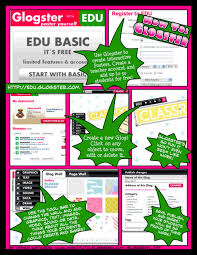
Create electronic posters with Glogster. Teachers can create a Glogster to introduce a unit topic or detail a main concept. Students can also create a Glogster to demonstrate mastery and/or use as their visual in a presentation. Student creation of Glogsters is also a way to meet the Common Core Literacy Standards and Technology Integration.
Create web quests with this easy to use website. Basically a web quest is an inquiry based lesson students complete online. You can sign up and create a free web quest. For a small fee you can create additional web quest. There is also a search feature to find web quests ready to go and use in your class. Students are given an introduction to the topic, performance task(s), resources, and a rubric for evaluation.
 I LOVE this site. You become the curator of your own electronic magazine. Search for items online and Scoop then onto you topic page. You can add multiple pages to curate by topic, class, and more. Scoop it suggests articles based on the tags you give your topic page or you can add your own from the internet. The site also allows you to comment on the article/item and others can too. Not only is this great for teachers to use with their students, but students can also create their own magazine/journal and reflect on their article they’ve chosen. Other students in the class can comment too. This a great way for students to integrate and evaluate multiple sources of information, evaluate different points of view, produce clear and coherent writing, and use technology to produce and publish…all part of the Common Core Standards. A suggestion in using this in a global context is to have students use Newseum to find articles from around the world to curate. App available
 Create a visual timeline online with this tool. Add image(s) of an event, tag the date, and provide a description. There is also a comment feature to use with students…great for teachers and students to use. Another application would be to use it thematically such as a collection of Native American Art, photosynthesis process, characters in a piece of literature and so forth. App available
Students can create flash cards online. Very user friendly for the students. Study Blue allows students to have their flashcards in there hands anywhere they are if they have a smart phone. They can also be accessed online. App available
Photostory is a free download for PCs to make movies. You can add images, save a PPT as a JPEG and import the slides, and upload music into your own movie. Editing options include transitions, adding text in color, setting motion paths in the Ken Burns manner, and setting the timing. It is a basic movie making program…easy for students to use. A teacher friend of mine was making one and then her early elementary grandson did his own. Great for students to create a mini documentary or content trailer. Here is an
online tutorial.
 This is a free and easy to use website maker. Also, if your students participate in History Day, this is the platform students must complete their websites in. They have a variety of themes and page design to choose from. You can pay to upgrade your site for more advanced features. Great for teachers and students to create an electronic portfolio or use for unit or topic assignments. App available
Ever had the problem of student work in a format that doesn’t open on your computer? Tired of emailing docs back and forth the collaborating remotely? Google Docs is your answer. Create documents, presentations, and more in Google docs and share…no more format issues. This also facilitates collaboration between peers and students in group projects. Teachers can also comment on student work and view when students have contributed. Sharing files between department members, PLNs, and students is made as simple as hitting the share button. You will need to have a gmail account to use, but that’s free. App available
Edmodo is a free class management system that functions like Facebook… student like this and have little problem navigating it. This is a great tool to post comments or question of the day and continue the dialog outside of the classroom. Teachers can separate students by subject, class period, or club. It is a closed site. Upon creation of your group, you are given an access code for your students to use when registering. Edmodo provides a variety of tools such as the ability to poll, quiz, continue discussions, and share information and resources. App available
Choose from a variety of sets, music, and characters to create your 3D animation to share or download. There is a free version and ones for purchase. Xtranormal allows teachers to set up classes, issue a class registration code, and manage assignments. You or the student creates the script… I suggest having the students complete a story board before moving to the computer. Students generally are very apt to navigating the program and think this is fun…a nice way to trick them into working. This has a variety of ELA Common Core and content area applications… colleges are using this too.
Turn your photos, video clips, and music into a video. Animoto allows you to create free 30 second videos, longer videos are available for $30 a year. Sign up for a App Available

Turn a photo into a talking image. Blabberize can be used as a hook or student assignment. Ideas for the classroom include having students select a figure and recording a speech, creating a song, poem, or narrative about a key figure, or having students research a person and then having them give their biography. App available
Take famous speeches, news articles, slogans and themes and turn them into a visually stunning word cloud, words individually sized appropriately to highlight the frequencies of occurrence within the body of text...a more creative Wordle.


