Google Docs, housed on Google Drive, have a limitless possibility in the ways teachers can utilize them to meet the 4C's of the Common Core (creativity, collaboration, critical thinking, and communication). Additionally, using Google Docs eliminates the need for costly Microsoft software and formatting issues. How many times has a student told you their computer crashed, they lost their flash drive, student x is absent with the PPT/doc, they forgot to save the file, or the computer will not open the file? Google Drive eliminates all of this! It automatically saves the document, students can share the document and work on it at the SAME time ( I have had a whole class of 37 students working on 1 CST PPT for review at the SAME time), it is stored in the cloud, and eliminates the cannot open file issue with different formats. As long as you are connected to the internet, you can access the file. It is also available as an app on android and ios devices.
To begin, have students create a Google Drive account. When in Drive, you can create a document (similar to a doc), presentation (similar to a PPT), spreadsheet (similar to excel), form, drawing, or folders. Once students get used to the sharing and privacy settings, Google Documents are transformational and students generally will gravitate to them. They also allow you to see the revision history so you can see exactly when and who was active on the document. Students can create a Doc and you can have them share it with you and/or another student enabled to comment. This can be used as an exercise to write , collaborate for revision, and then have the student revise the Doc for final submission. If you are completing a group project in class or for National History Day, multiple students may edit a document. Teachers may also have students create a folder with their writings/inquiry throughout the year to serve as an electronic portfolio.
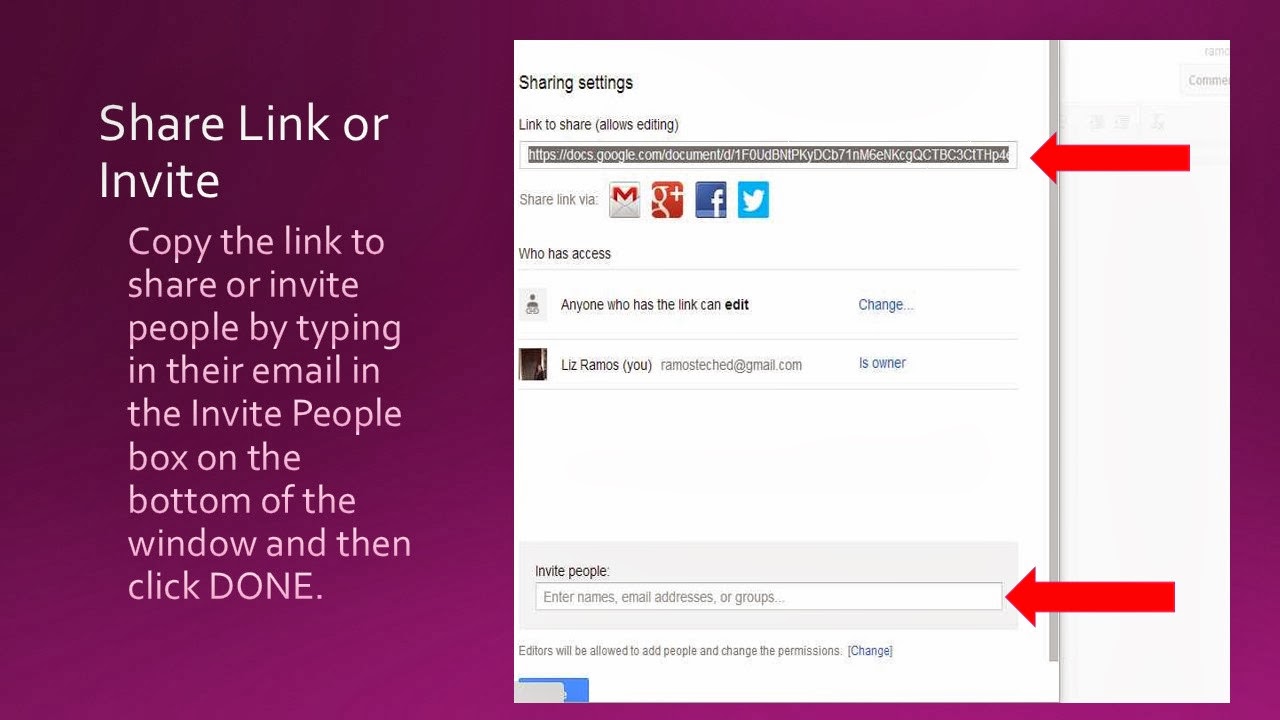
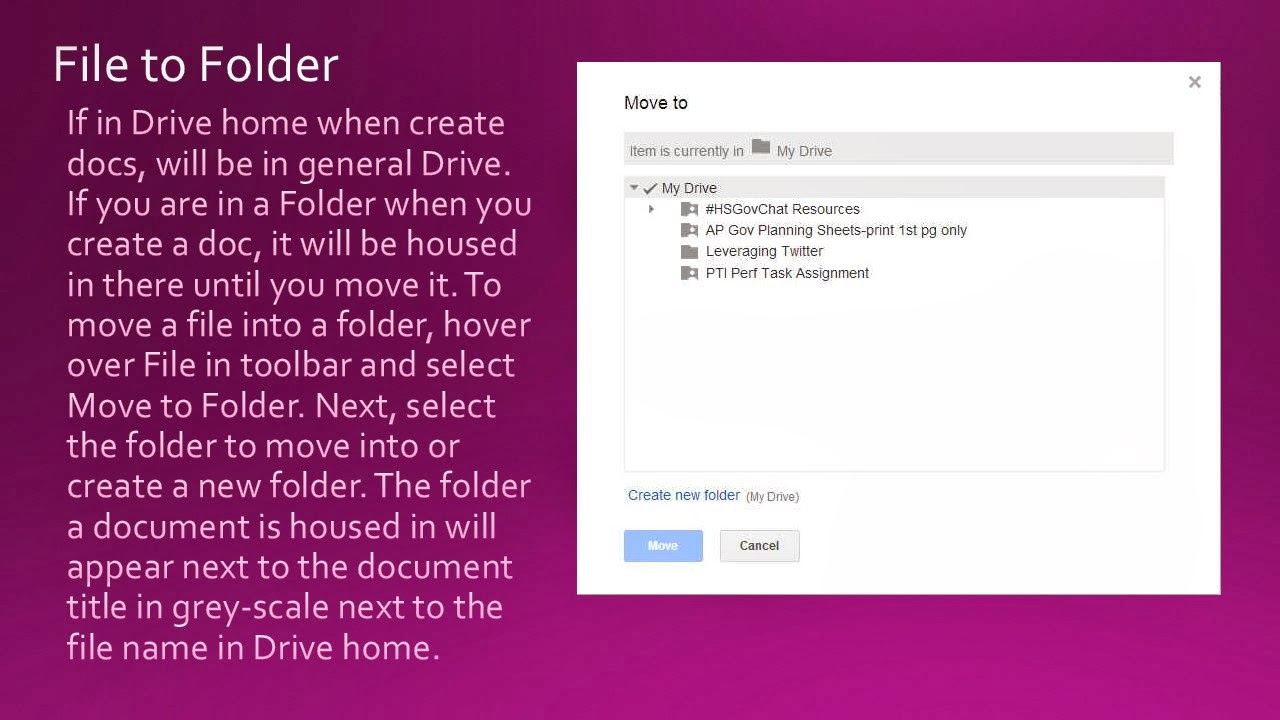
Here are the steps to creating a Google Document and sharing it:

 Too often our students go through the school day without speaking in class. Communication and Speaking are elements of the classroom addressed in CCSS. Often as teachers we find it difficult to keep track of student participation and randomizing our student selection for participation. Class Cards is an android and iPhone app that makes tracking student participation easier. Utilize Class Cards to randomly generate a list to call on students, select a student of your choosing to respond, rate the quality of the student response instantly in your hand, view student response scores individually or as an entire class, email yourself student scores, and archive scores to view, print grade sheets, or download the data into an Excel spreadsheet. I love the idea of being able to quickly note the quality of student responses', especially for Socratic Seminars. Also, many students sit passively in a class because it has no "worth" to speak. Class Cards makes it easier for teachers to give purpose to Communicating in the classroom.